Scrolling Screenshot Windows
(11/10): Mac, iPhone, Android & PC
A Scrolling Screenshot Windows allows you to capture an entire webpage, document, or conversation in a single image without needing multiple screenshots. It doesn’t offer a native scrolling screenshot tool, but you can use other tools and screenshot software. The fastest method is to press Ctrl + Shift + S to capture an entire page.
Whether you are using Windows, Mac, iPhone, Chrome, or Linux, there are multiple methods to capture a full page. You can use third-party tools or apps, such as ShareX or Snagit, to get advanced scrolling-capture features.
What is a Scrolling Screenshot?
When we capture a full-page screenshot, Windows results in a single image, including all the content on the page, known as a Windows scrolling screenshot. It automatically scrolls through the content and combines everything into one continuous screenshot instead of capturing what is visible on your screen. It makes it easy to save, share, and view long content without taking multiple screenshots.
How to take a scrolling screenshot on Windows 11/10? Top Methods
There are multiple methods to capture the Windows scrolling screen, presented below:
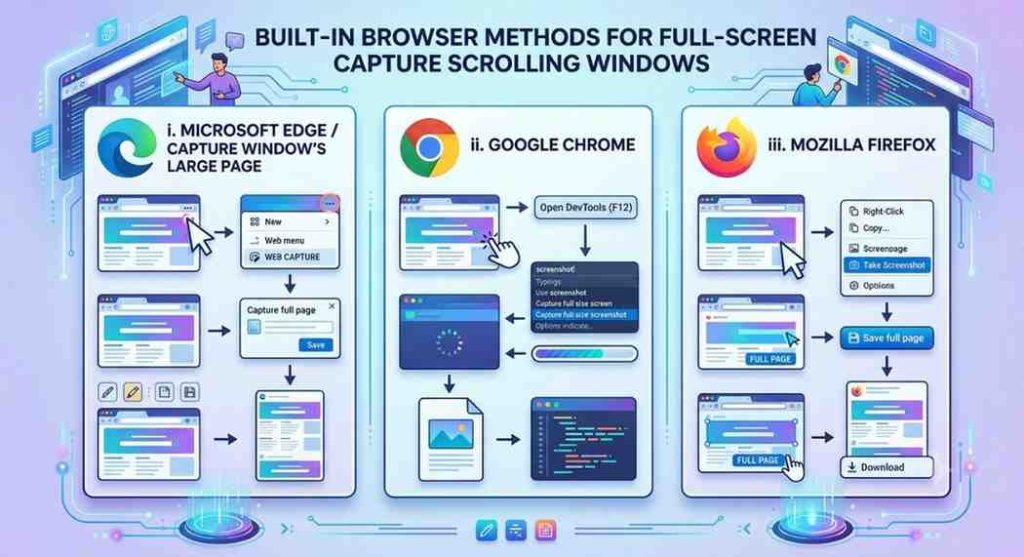
The Built-in Browser Methods for Full-Screen Capture Scrolling Windows
i. Microsoft Edge / Capture Window’s Large Page
- Press the shortcut key Ctrl + Shift + S from your PC’s keyboard
- Click the button “Capture Full Page”
- Now, draw on
- Download the resulting long page by clicking on the “Save” option
ii. Google Chrome
- Open the page you want to capture
- Right-click and choose the “Inspect” option
- Press the key Ctrl + Shift + P to open the command menu
- Now, type “Screenshot”
- Choose “Capture Full Size Screenshot”
- Click the save button to download the image
iii. Mozilla Firefox
- First, open the built-in scrolling screenshot tool by pressing the key Ctrl + Shift + S
- Select capture full screen
- Click the save button
Official Firefox help center covering screenshots, browser tools, and settings.
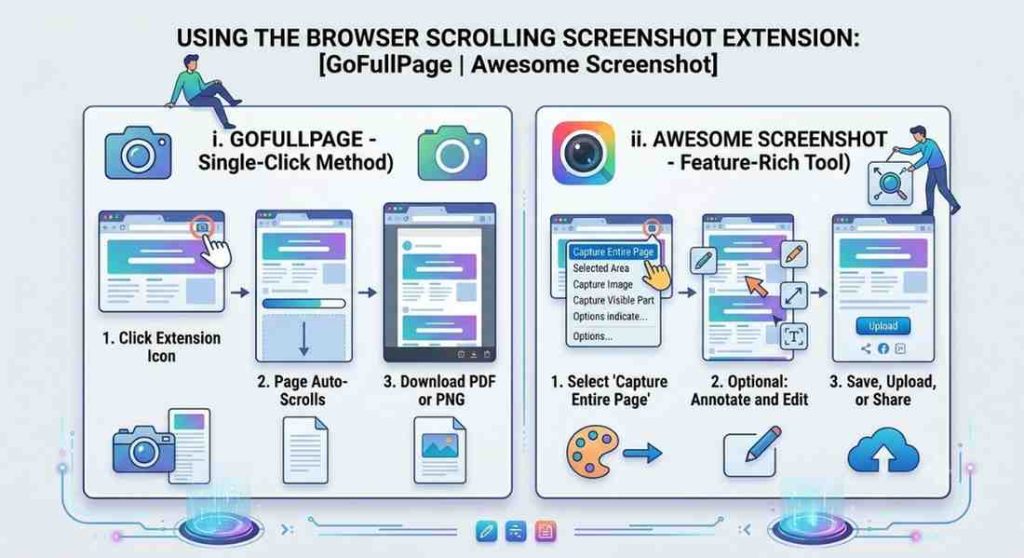
Using the Browser Scrolling Screenshot Extension
i. GoFullPage
This is the most popular and free Windows screenshot extension. In the toolbar, click the Camera icon. It will scroll down, compiling the full page into a single picture or PDF file.
ii. Awesome Screenshot
This reliable tool allows you to capture full-page images with built-in annotation, cropping, and blurring tools.
Using the Browser Scrolling Screenshot Extension
If you want to take a screenshot of a scrolling document, such as a doc file or a chat app, use a third-party tool or scrolling screenshot software.
i. ShareX
This is a 100% free, high-quality screen capture tool.
- Open the ShareX tool on your Windows
- Click the Capture option and choose the “Scrolling Capture” option
- Select the area you want to take a screenshot of
- It will automatically scroll the screen and compile the images together into a file.
ii. Snagit
This is a premium-quality scrolling screenshot tool for Windows.
- Open the Snagit Scrolling Screenshot Windows
- Now, select the All-In-One Capture
- Click the orange crosshairs over the Windows
- After that, press the yellow Scroll and Capture arrow and scroll down manually
- It will instantly capture the quality scroll screenshot.
Where does the Windows scroll capture go or save?
Windows does not have a built-in scrolling screenshot tool. It depends on the browser, app, or third-party tools where the captured image is saved.
- If you are using Microsoft Edge, click the save icon after capturing the screen to download the image to your gallery.
- Google Chrome or Mozilla Firefox directly saves to your default Download folder.
- If you are using the ShareX Windows Screenshot tool, the captured images are saved as PNG files in Documents.
- Snagnit saves scrolling capture to the app’s internal library or customized folders. Other apps also save screenshots as Snagnit.
- While some other web apps copy your screenshot to your Clipboard, you will need to paste (Ctrl + V) into an app like Paint.
Methods to take Android scrolling screenshots
There are multiple methods that we can use to take a scrolling screenshot on Android. The fastest way is to press the Power and Volume Down buttons together. Crop the screenshot to capture your desired area. Click the Save button to save it to your device’s gallery.
How to take a scrolling screenshot on Mac?
scrolling screenshot Mac is not available in its built-in screenshot methods. The fastest method is to press together the shortcut key Cmd + Shift + P. You can capture using Mac Scrolling Screenshot apps, such as Shotter or Cleanshot X. You can also use a native browser trick to save full webpages as PDFs. The built-in tools (Safari Export) can also be used to save captured images as a PDF file.
How to take a scrolling screenshot on iPhone or iOS?
iPhone offers native scrolling screenshot iOS devices. You can take a screenshot of long articles or web pages in Safari or Notes in a Single PDF. Press the Power + Volume Up button (Face ID) for Scrolling Screenshot iPhone.
How to take a scrolling screenshot chrome?
Chrome offers built-in scrolling screenshot methods without needing an external app or extension. We can use the built-in full-page capture tool to save entire pages as a single image. Use third-party apps or extensions, such as the GoFullPage extension, for advanced features, like annotation, blurring, or cropping.
How to take a scrolling screenshot on a laptop using the keyboard?
You can capture a laptop’s scrolling screen using keyboard shortcuts, but it also depends on the browser you are using. In Microsoft Edge, press Ctrl + Shift + S to take a scrolling screenshot in laptops. Choose Capture Full-Screen. In Google Chrome, first press Ctrl + Shift + I, then press Ctrl + Shift + P, type Screenshot there, and select Capture Full-Size Screenshot. If you are using Firefox, press Ctrl + Shift + P, and use the built-in scrolling capture tools. ShareX and PicPick are third-party screenshot tools with advanced features.
Srolling Screenshot Linux
Taking a Linux Scrolling Screenshot depends on the application you are using. For Webpages, Google Chrome and Firefox offer built-in options to capture an entire screen without needing extra apps or extensions. Ksnip and Flameshot are third-party tools that you can use to capture a Linux screen.
Common Uses of Windows Scroll Capture
- It keeps entire articles, reports, or webpages in one image for offline viewing.
- Save complete chats from Slack, Teams, Discord, or other messaging apps.
- Capture a full webpage to check layout, spacing, and design issues.
- Store step-by-step guides, instructions, and images in a single file
- While some other web apps copy your screenshot to your Clipboard, you will need to paste (Ctrl + V) into an app like Paint.
Common Problems and Solutions about the Scrolling Screenshot Windows
1. Scrolling screenshot not working
Problem
Scroll screenshot Windows either doesn’t capture the entire page or fails to start.
Solutions
- Ensure that the webpage or app supports scrolling screenshot
- Close unnecessary programs and try again
- Restart the screenshot tool or your PC, and capture again
- Exclude fixed headers, sidebars, and footers from the capture area.
- Use an alternative method or apps for taking a scroll screenshot on Windows
2. Static Elements Causing Capture Errors
Issue
The scrolling screenshot is missing sections or captures incorrectly because of fixed footers, headers, or sidebars.
Solutions
- Choose a custom capture area
- Exclude fixed elements before starting the scrolling screenshot.
3. Animated Content Affecting Capture
Issue
Videos, GIFs, or moving content may cause scrolling capture errors or may appear broken or incomplete.
Solutions
- Avoid capturing moving or animated sections
- Use custom regions that include only the content you need
4. Hover Effects Creating Inconsistent Screenshots
Issue
The screenshot contains unexpected highlights or color changes while scrolling.
Solutions
- Move the mouse cursor away from the content area but near the scroll bar, before starting capture.
Conclusion
A scrolling screenshot Windows doesn’t require special hardware or paid software to get right built-in browser tools like Microsoft Edge’s Web Capture handle most webpage captures for free, while apps like ShareX and Snagit cover documents, chats, and anything outside the browser. Whichever method you choose, capturing a full page in one continuous image saves time and makes sharing long content far easier than stitching together multiple screenshots.
FAQs
What does Ctrl+Shift+S do?
This is a Windows scrolling screenshot shortcut method, but it depends on the applications you are using. In Microsoft Edge, it opens the Web Capture tool to take a scrolling screenshot online.
How to take a scrolling screenshot in Windows 11 using Snipping Tool?
The Windows 11 Snipping tool does not currently support true scrolling screenshots. You can capture a selected area or an entire web page, but it cannot automatically capture a full page. For this, you can use other tools like Microsoft Edge, third-party apps, ShareX, or PicPick.
What are the methods to take a Scrolling Screenshot Windows 10?
Windows 10 does not have a native scrolling capture tool. We can take a Windows 10 scrolling screenshot using the built-in Microsoft Edge (Ctrl + Shift + S) browser for a webpage. Third-party apps for taking screenshots are also available if you want to enjoy advanced features.
How to take a scrolling screenshot PC?
You can take a scrolling screenshot on a PC using the methods that are discussed for Windows.
Can I take a scrolling screenshot for free?
Yes — Microsoft Edge, Google Chrome, Firefox, GoFullPage, and ShareX are all completely free scrolling screenshot software options. Snagit is the main premium option if you need advanced editing features.