Screenshot Android | How to Screenshot on Samsung & Android Phones
The fastest way to take a screenshot on Android is to press the Power and Volume Down buttons at the same time. The screen will flash, and your screenshot saves automatically to your Gallery. This method works on Samsung Galaxy, Google Pixel, Motorola, OnePlus, and virtually every other Android phone and tablet. Android also gives you several alternative methods including gestures, voice commands, and quick settings, so you can capture your screen even when your buttons are difficult to reach.
How to take a screenshot on Android?
Method 1
Physical Buttons
- Open the screen that you want to capture
- Press the Power button and the Volume Down button at the same time and hold them for about one second.
- The screen will flash and you will hear a shutter sound confirming the screenshot was taken.
- A preview thumbnail appears in the bottom left corner of your screen.
- Tap it to edit or share immediately, or leave it to disappear and save automatically to your Gallery.
Method 2
Power Menu
- Open the screen that you want to capture
- Press and hold the Power button for two to three seconds until the Power menu appears on your screen.
- Tap Screenshot from the options shown. The screenshot saves automatically to your Gallery.
- Note: On some Android phones this option may appear as "Take screenshot" or may not be available depending on your device manufacturer and Android version.
Method 3
Google Assistant Voice Command
You can take a screenshot on any Android phone hands-free using
Google Assistant.
- On Google, say "Hey Google, take a screenshot" and Google Assistant will capture whatever is currently on your screen.
- This method works best when your hands are busy, when you are driving, or when button access is difficult.
- On newer Android phones with Gemini as the default assistant, say "Hey Google" or tap the Assistant icon and say "Take a screenshot" to capture your screen in the same way.
Method 4
Quick Settings Tile
Most Android phones running Android 11 and later have a Screenshot tile in the Quick Settings menu.
- Swipe down twice from the top of your screen to open the full Quick Settings panel.
- Look for the Screenshot tile and tap it to capture your screen.
- If you cannot find the Screenshot tile, tap the pencil or edit icon in the Quick Settings panel to enter edit mode.
- Find the Screenshot tile from the available options and drag it into your active tiles.
- Tap Done and the tile will be available from that point forward.
Method 5
Recent Apps Gesture
All modern Android phones running Android 9 and later allow you to take a screenshot directly from the Recent Apps screen.
- This method works whether you use gesture navigation or three-button navigation.
- Gesture navigation: Swipe up from the bottom of your screen and hold briefly to open the Recent Apps view.
- Find the app screen you want to capture and tap Screenshot below the app preview.
- Three-button navigation: Tap the square Overview button in your navigation bar.
- Find the app screen you want to capture and tap Screenshot below the app preview.
A Quick View of Different Screenshot Using Android
| Method | How It Works | All Phones? |
|---|---|---|
| Physical Buttons | Press Power + Volume Down together | Yes |
| Power Menu | Hold Power button, tap Screenshot | Most phones |
| Quick Settings Tile | Swipe down twice, tap Screenshot tile | Android 9+ |
| Google Assistant | Say "Hey Google, take a screenshot" | Yes |
| Recent Apps Gesture | Swipe up, hold, tap Screenshot | Android 10+ |
| Palm Swipe | Swipe edge of palm across screen | Samsung only |
| Bixby Voice | Say "Hey Bixby, take a screenshot" | Samsung only |
| Edge Panel | Swipe left on edge handle, tap | Samsung only |
| Three-Finger Swipe | Swipe 3 fingers down on screen | Select brands |
| Quick Tap | Double-tap back of phone | Pixel 4a 5G+ |
| Knuckle Tap | Double-tap screen with knuckle | Select brands |
How to Take a Scrolling Screenshot on Android
A scrolling screenshot lets you capture an entire webpage, long chat conversation, or settings menu as one continuous image instead of taking multiple separate screenshots. Scrolling screenshots are available on Android 12 and later on most Android phones. Samsung Galaxy phones support scroll capture on older Android versions as well through One UI.
- 1 Open the screen you want to capture
- 2 Press Power + Volume Down to take a normal screenshot
- 3 When the screenshot toolbar appears at the bottom, tap Capture more
- 4 Use the crop guidelines to select how much additional content you want to include.
- 5 Tap Save when you have captured everything you need. The result is one tall image containing all the scrollable content you selected.
- 1 Take a screenshot using Power + Volume Down or Palm Swipe
- 2 When the toolbar appears, tap the scroll capture icon showing two downward arrows in the screenshot toolbar.
- 3 Keep tapping the icon to extend the capture further down the page until you have everything you need.
- 4 Tap anywhere outside the toolbar when done to save the full scrolling screenshot
How to Take a Screenshot on Samsung Galaxy

Samsung Galaxy phones running One UI have more screenshot methods than any other Android brand. All methods below work on Samsung Galaxy S, Galaxy A, Galaxy Z Fold, and Galaxy Z Flip series phones.
To enable it:
Settings > Advanced Features > Motions and Gestures > Palm swipe to capture
How to Take a Screenshot on Google Pixel
The fastest way to screenshot on Google Pixel is to press the Power and Volume Down buttons at the same time. Hold until the screen flashes and you hear a shutter sound. A preview appears in the bottom left corner — tap it to edit or share, or leave it to save automatically to Photos > Collections > On this Device > Screenshots..
- 1 To enable it, go to Settings > System > Gestures > Quick Tap and turn it on
- 2 Select Take screenshot from the action options
- 3 Double-tap the back of your Pixel between the camera and the Google logo to capture instantly
How to Take a Screenshot on Chromebook

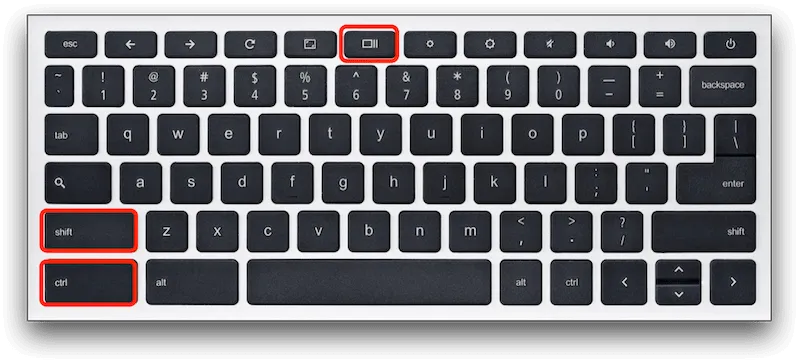
Chromebook uses keyboard shortcuts for screenshots, similar to how Windows uses Print Screen. The Show Windows key looks like a rectangle with two vertical lines and is in the top row of your keyboard, usually above the number 6 key.
| Shortcut | What It Does |
|---|---|
| Ctrl + Show Windows Key | Captures the full screen instantly. The screenshot saves automatically to your Downloads folder. |
| Ctrl + Shift + Show Windows Key | Partial screenshot Your cursor changes to a crosshair. Click and drag to select the area you want to capture and release to save. |
| Ctrl + Alt + Show Windows Key | Click on the window you want to capture. Only that window saves as a screenshot. |
| Ctrl + Shift + Show Windows Key | Opens the Screenshot toolbar with all options. Choose Full Screen, Partial Screen, or Window. You can also switch to screen recording from this toolbar. |
| Power + Volume Down | Full screen — tablet mode only |
| Ctrl + F5 | Full screen — external keyboard only |
How to Record Your Screen on Android Devices
Screen recording captures everything happening on your screen as a video. You can also record your screen on Windows, Mac, and iPhone using built-in tools.
- Swipe down twice from the top of your screen to open the Quick Settings panel.
- Look for the Screen Recorder tile and tap it. If you cannot see it, tap the edit icon to add it to your active tiles.
- Tap Start to begin recording. A countdown appears before recording starts.
- To stop recording, swipe down from the top and tap Stop in the notification, or tap the red recording indicator.
- Your screen recording saves automatically to your Gallery.
- On Samsung Galaxy phones, the Screen Recorder appears in the Quick Settings panel as a standard tile and includes options for audio recording from the microphone, system sounds, or both.
Where Are Screenshots Saved on Android?
Take a Screenshot in an Android Phone With Gestures
The gesture screenshot includes three different methods:
Three-Finger Swipe
- Open the screen you want to capture
- Swipe down three fingers on the screen
- The screen will flash and capture the image
- It will instantly be saved to your device
Palm Swipe for Samsung Smartphones
Slide the edge of your palm across the Samsung screen. The screenshot will be captured and saved to your device
Screenshot with Knuckle Tap (Some Brands)
It applies only to some brands.
- Open the screen that you want to take a screenshot of
- Now, double-tap the screen with your knuckle
- It will capture the screen instantly
How to Take a Screenshot in Android Studio
If you are a developer testing an app, Android Studio lets you capture screenshots directly from a connected device or emulator without using the physical buttons.This method is quicker and more precise than using Android mobile buttons.
From a Connected Device
- Run your app on a connected device or emulator. If using a connected device, ensure USB debugging is on (for a real device).
- In Android Studio, open the Logcat window. Go to View, then Tool Windows, then click Logcat. Once Logcat is open, look for the Screen Capture icon in the Logcat toolbar and click it.
- From the top menu, choose your device
- Now, press the Screen Capture (Camera icon), which is present on the left side of the window
- After that, the screenshot will open in the screenshot editor on Android
- There, you can change the image using the editing options, such as recapture, rotate, or add a device frame.
Screenshot Android Emulator
- Open the emulator on your device
- Now, locate and click on the camera icon with the caption (Take Screenshot) on the sidebar tool
- The captured image will appear instantly or will be saved to your device's gallery.
How to Take a Screenshot Using the Accessibility Menu
The Accessibility Menu provides a floating on-screen button that includes a screenshot option. This is useful if your physical buttons are broken or difficult to press.
- First, go to the Settings of your device
- Open the Accessibility option
- If you are using a Samsung device, click Interaction and Dexterity. Locate the Assistant Menu and turn it on.
- If you are using Pixel, click the Accessibility Menu and enable it.
- Click the floating Accessibility or Assistant Button
- Choose the screenshot option
- The image will be saved to your device's gallery automatically.
Screenshot Android phone Troubleshooting
If your smartphone is not capturing your screen after using the screenshot method, mostly due to settings, app restrictions, or permissions.
Screenshot Android not working
Issue:
If the Power + Volume Down method is not working, try these
fixes in order.
Solutions
- First, restart your phone and try again as this solves most temporary issues.
- Second, check that your physical buttons are working properly by testing them separately.
- Third, check that screenshot gestures are enabled in your device settings if you are using a gesture method.
- Fourth, if your phone storage is full, clear some space because Android cannot save screenshots without available storage.
The Android screenshot is black
Problem
Screenshot appears completely black after capture.
Solutions
- The app you are screenshotting has DRM protection enabled.
- This includes banking apps, streaming services like Netflix and Disney Plus, and apps in incognito or private browsing mode.
- This is a system-level restriction and cannot be bypassed.
- Try screenshotting outside of the protected app or use the official sharing options within the app instead.
How to resolve the error, “Screenshot Android is not allowed.”
Issue:
I received the message, “Screenshot not allowed”.
Solutions
- The app has blocked screen capture for privacy or security reasons.
- This is intentional and is not a bug.
- Use the official sharing or export options inside the app if available.
- Do not use third-party tools to attempt to bypass this restriction as it can compromise your data security.
Screenshot of the Android app when not allowed
Problem
Some specific apps never allow for screen capture.
Solutions
- Use the official sharing options inside the app if it is available
- Never use a third-party screenshot tool to bypass restrictions because it may cause risk for your data
- App blocks screenshots for privacy and security reasons, this cannot be changed
Screenshot delay Android
Issue:
Screenshots take time or feel slow.
Solutions
- Some phones add a short animation delay by default.
- Go to Developer Options and turn off Window animation scale, Transition animation scale, and Animator duration scale to make it faster
- Sometimes, background apps create glitches. Close the background apps if your smartphone feels slow
Android screenshot disabled
Problem
The screenshot option is disabled or not working.
Fix
- Check your Accessibility or Gesture settings to make sure screenshot shortcuts are enabled
- On work or school managed phones, your IT administrator may have disabled screenshots through a device management policy
- Open Settings and check Security or Privacy for any restrictions
- Check with your administrator if this applies to your device
FAQs for Android Screenshot
How do I take a screenshot without the Power button?
The easiest way is to say “Hey Google, take a screenshot” using Google Assistant. You can also swipe down twice from the top of your screen and tap the Screenshot tile in Quick Settings. On Samsung, enable Palm Swipe from Settings > Advanced Features > Motions and Gestures, or say “Hey Bixby, take a screenshot.”
Can I use a screenshot app on Android?
Yes, but most users do not need one. Android has multiple built-in screenshot methods including buttons, gestures, Quick Settings, and voice commands. If you need advanced features like annotation or cloud storage, apps like Screenshot Easy, Screen Master, or Google’s own Markup tool add extra functionality.
How do I take a screenshot on a Samsung without buttons?
The simplest button-free method on Samsung is Palm Swipe. Open Settings, tap Advanced Features, then tap Motions and Gestures and turn on Palm swipe to capture. Once enabled, swipe the edge of your palm smoothly across the screen to capture instantly. You can also say “Hey Bixby, take a screenshot” or use the Edge Panel shortcut on the right side of your screen.
How do I take a screenshot on a Chromebook?
Chromebook uses keyboard shortcuts for screenshots. Press Ctrl + Show Windows Key for a full screen capture. Press Ctrl + Shift + Show Windows Key to select a specific area by clicking and dragging. All screenshots save automatically to your Downloads folder.